|

|
|
Latest update
|
2010-03-24
|
|
|
|
Welcome!
I hope you enjoy the software I have written. Feel free to download and use these programs.
If you would like to help support further software development,
PayPal online donations are gratefully accepted.
Thanks for your interest
-- Paul J. White
|
|
|
|
|
|

|
Windows Uptime Logger keeps track of how long
your computer has been running with a small task bar entry. It also keeps
a log, entering time stamps periodically. Very small and simple.
If you are having problems with your computer shutting down unexpectedly,
the logging function of this program can help discover when the shutdowns
are
happening.
Click here to download the wuptime 1.00
installer
(734,873 bytes)
Installation: Run the installer program and follow the
instructions.
|
|
|
|
|
|
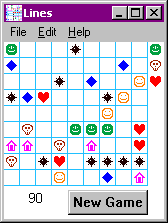
Lines is a board game where the object is to clear
lines of five or more matching pieces in a row. Lines can be vertical,
horizontal, or diagonal.
A piece can only move from point A to point B if there is a clear path for the
piece to follow, moving only vertically or horizontally.
After each move, three
new pieces fall at random on the board. When the board is full, the game is over.
Game options include sound (on.off), big or little playing board, and a preview of the
next three pieces (on/off). If you close the program in the middle of a game,
the game will be saved automatically and resume the next time the program is run.
When a game is over, if your score is high enough, your name will be saved on the top ten list.
System requirements: Windows 95, 98, etc.
New! Version 1.08 released January 29, 2012
Click here to download
Lines v1.08 (107457 bytes)
Installation: Create a new directory in your Program Files directory
called lines. Unzip the lines.zip file into this new directory.
Drag the lines.exe file to your desktop to create a shortcut. That's it!
This game is based on Lines for the PalmOS by Dmitri Kornalov, but this version was written
completely from scratch by Paul J. White.
|
|
|
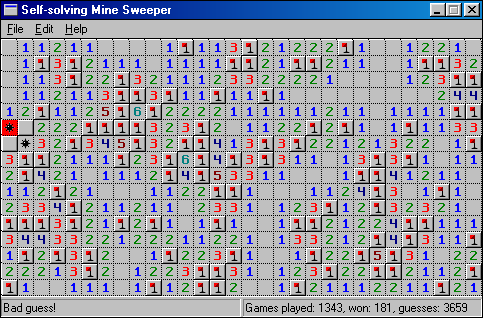
wmines is a self-solving version of the popular Windows game, Minesweeper.
Sit back and let the computer do all the work! Play slow and see how its done, or switch to
full speed and collect statistics on wins and losses. Let the computer play totally by logic, or allow
guessing to improve the win/lose ratio.
System requirements: Windows 95, 98, etc.
Click here to download wmines v1.03 (29998 bytes)
Installation: Create a new directory in your Program Files directory
called wmines. Unzip the wmines.zip file into this new directory.
Drag the wmines.exe file to your desktop to create a shortcut. That's it!
|
|
|
|